
YOUR SEAT. YOUR SECOND LOOK.
How to Replay Goalie Video from the Stands
Watch the play. Then watch it again.
Keep your camera behind the net and use a paired iPhone to save and replay a hockey goalie’s key moments from your seat.
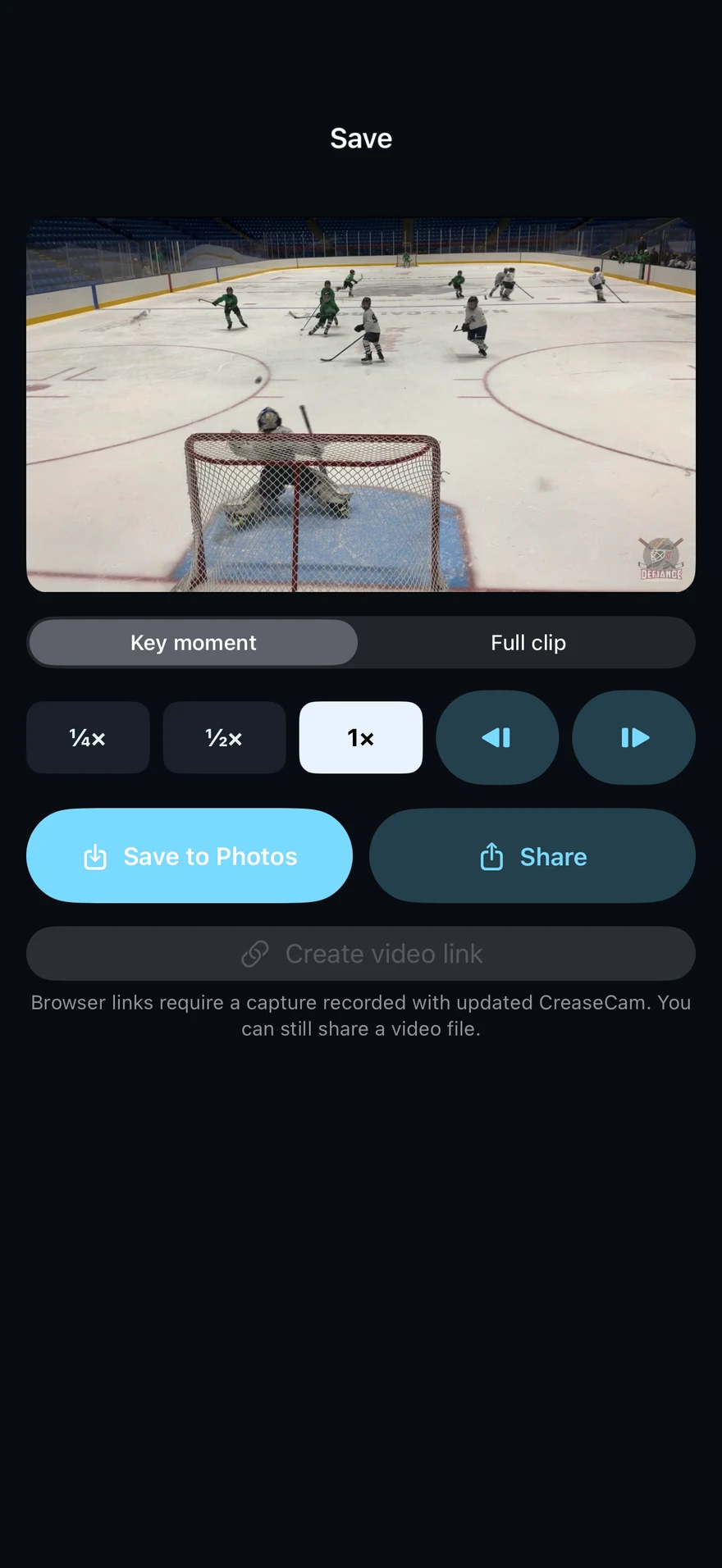
Use a camera and a remote
Mount a supported iPad or iPhone behind the net and start the camera. Pair a second iPhone as the remote using the camera’s invitation. The camera keeps recording while you watch from the stands.
Check the connection before the game
Nearby Bluetooth and direct Wi-Fi links can work without internet, but video replay needs a local Wi-Fi connection to the camera. A control connection alone does not guarantee video transfer. Check the remote’s status and test a download from your seat.
Tap after the play
Choose Save, Goal or Mark on the phone. The camera uses its rolling buffer to keep the lead-up and follow-through. Wait for the saved result; a queued tap is not confirmation that a clip exists.
Open Replays and choose the key moment
The nine-second key moment is a smaller option for a quick second look. Choose the full clip when the lead-up matters. The camera may need to prepare the video before it downloads; the remote shows preparation and download separately.
Slow down, seek and loop
Watch on your phone, slow the replay down or loop the moment. Share a downloaded clip when you want someone else to review it. Stay within local connection range while fetching video; full clips and 4K take longer, and timing depends on the devices and connection.
If the replay is not ready
Keep the camera app open and both devices connected. Check whether the camera confirmed the save, then check preparation or download progress. Internet control fallback and Bluetooth do not carry replay files. See the support page if a test download fails.