
Save the lead-up
Tap after the play to keep 20 seconds before it and 3 seconds after by default. Keep the camera running and let its buffer fill first.
THE CREASECAM FEATURE GUIDE
From the tap after a save to the feedback that shapes the next rep. Explore the tools that make your goalie video useful.
In current test builds. Public App Store launch coming soon. Device and connection requirements vary by feature.
Try a broader word, or clear your search to see the full list.
Keep the moment without predicting it.
Tap after the play to keep 20 seconds before it and 3 seconds after by default. Keep the camera running and let its buffer fill first.
Label the stop, goal against or coaching moment as you capture it, so you can find the right plays later.
Choose 5–60 seconds before a tap and 0–10 seconds after. Add extra lead-up for remote taps.
Use a supported iPad or iPhone behind the net. The same app can run as Camera or Remote.
Choose supported formats up to 4K at 60 fps, or lower-resolution and battery-saving presets. Available formats depend on your device.
Zoom and pan the camera view to focus on the crease and the action around it.
Choose whether to record audio and play a capture-confirmation sound. Undo an accidental capture.
Use Save, Goal and Mark shortcuts with a connected keyboard or compatible keypad, giving you another way to capture.
Stay with the other families. Pull up the play seconds later.
Leave the camera behind the net and watch with the other families. Tap on your paired iPhone to save a play, then remotely pull up the video seconds later without leaving your seat. Watch the key moment or download the whole clip.
Replay at your pace, step frame by frame or loop a moment before sharing it from your phone.
4K camera clips have 1080p replay copies for smaller transfers. Choose the original when saving, or enable 4K replay viewing on a supported direct connection.
Keep the camera at the net and trigger captures from a paired phone within connection range.
See whether a capture is queued, received, saving or saved. If a connection drops, pending taps can retry while the camera still has the footage.
Check the camera’s view and recorded framing from the remote. Live preview is optional to reduce battery and connection use.
Adjust capture quality, clip timing, sound and dimming from the remote. Change the goalie or period without reaching for the camera.
See when a replay is being prepared and downloaded. Full clips and 4K video take more time to prepare and transfer.
Replays use a Wi-Fi connection to the camera, not Bluetooth or the internet relay. Stay within range; timing depends on the clip, devices and connection.
Turn “what happened?” into something you can show.
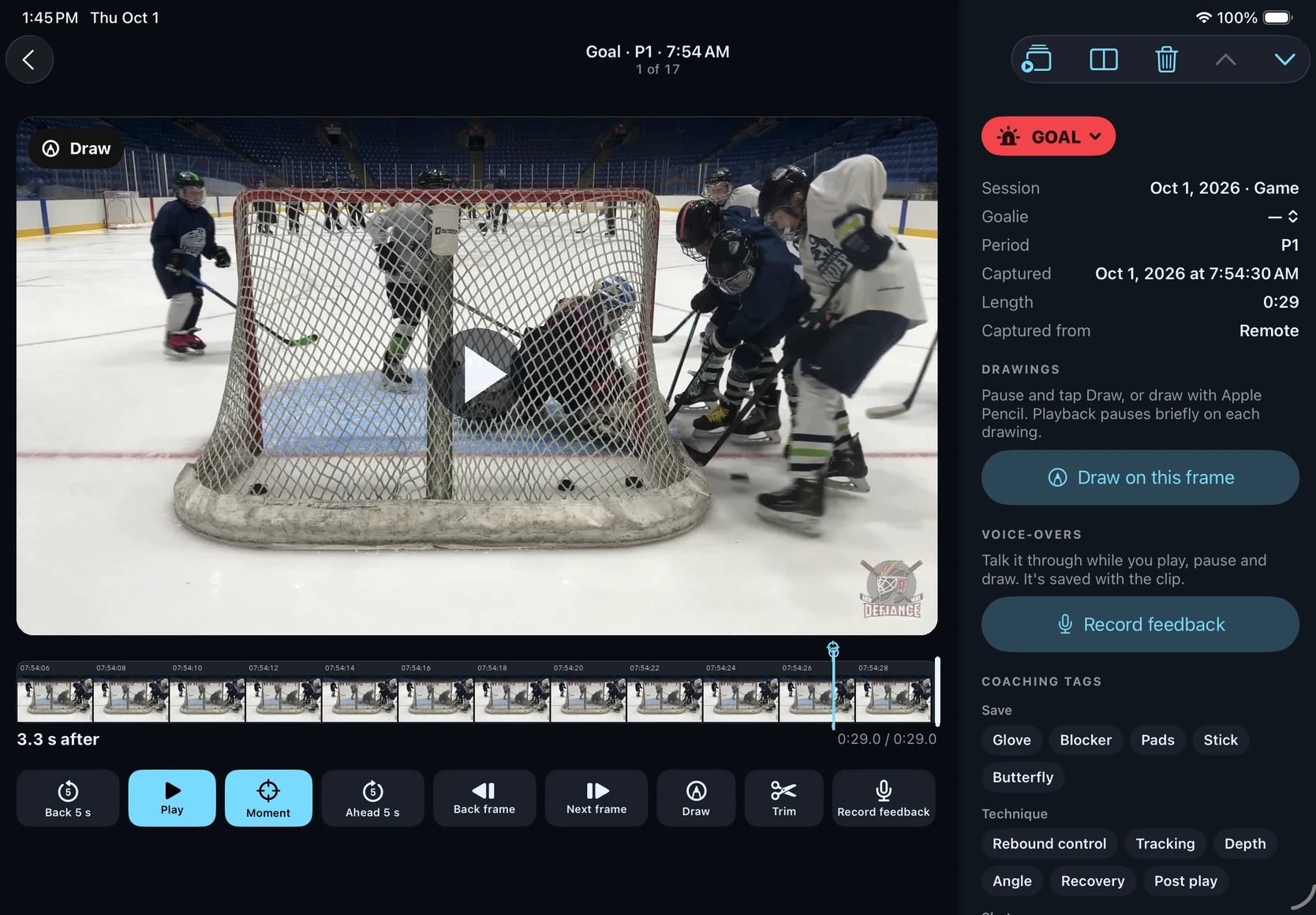
Use slow motion, playback speeds from ¼× to 2×, and frame stepping to study timing, tracking and recovery.
Use the filmstrip and Moment shortcut to get back to the action without replaying the entire lead-up.
Add arrows, lines, circles, pen marks and angles. Attach drawings to a frame or the whole clip.
Draw directly with Apple Pencil on a compatible iPad, or enter finger-drawing mode while paused.
Calibrate the view using four rink marks, then use depth and shooting-line guides to explain positioning. Accuracy depends on a stable view and careful calibration.
Talk through playback, speed changes and drawings. Pause, redo a part and preview the review before sharing.
Include front-camera video in a coaching review. Using the front camera pauses rink-camera capture on that device.
Align moments and review side by side, stacked or overlaid. Adjust each view, draw and record feedback across the comparison.
Focus a clip on the key moment or tighten the framing. These edits replace the saved video; export a copy first if you want to keep the original view.
Find the right rep, even after the session.
Group footage by session with goalie, date and period context, instead of a camera roll full of unrelated videos.
Keep names, teams, jersey numbers, catching hand and notes together. Assign clips to the goalie they show.
Star a useful clip, add a note and tag the technique, save or shot you want to revisit.
Narrow the library by session, capture label, stars and tags. Select clips together to tag, share, compare or make a reel.
Work through clips with Keep, Star and Delete decisions, helping you sort a session’s useful moments.
See save percentage, session totals and goalie trends based on the plays you capture and label—not an automatic count of every shot.
Finish a session with a goalie-focused overview, then review goals against, make highlights or prepare a coach handoff. Pending saves and transfers remain visible.
See what’s ready before the puck drops.
Check recording readiness, permissions, links, battery and storage before you rely on a capture.
Find and approve a nearby remote, scan the camera’s private pairing QR, or enter its connect code.
Bluetooth and direct Wi-Fi support nearby camera control. Wi-Fi carries previews and replay files; rink conditions affect range and reliability.
Use the app’s additional Wi-Fi connection option on supported iOS 26+ hardware. The app manages available links and fallbacks.
An optional encrypted relay can carry commands, status and preview when local delivery fails. It does not carry replay files.
Check camera battery and recording warnings on the remote. The camera can dim its screen while recording and warn when power is low.
Inspect link health, transfers and the relationship between your devices. The rink diagram is a connection overview, not a location tracker.
Keep an angle when the goalie changes ends.
Pair cameras at both ends of the rink. Each tap captures both views so the other angle is kept too.
Set the goalie’s first-period end and let period changes alternate the in-net camera. Correct it manually when needed.
The in-net view counts toward captured-event statistics. The second angle is marked Other end and excluded from those counts.
Sync the secondary camera’s clips to the primary over Wi-Fi, directly or carried by the phone. Choose original quality or smaller 1080p transfers.
See pending transfers when ending a game so you know which devices still need to stay on and connected.
The practical tools around every session.
Tap Save, Goal or Mark from the companion Watch app with haptic feedback. Commands go through its paired iPhone; check the phone for the capture result.
A Live Activity shows session and capture statistics on supported iPhones. Updates depend on the app running and the latest camera status.
Recover deleted clips for up to 30 days, subject to available storage. Storage pressure can clear older deleted clips sooner.
Export clips and library metadata together. Restore to an empty library; use session packages when you want to add to an existing one.
See library and trash usage, free-space warnings and recovery information for interrupted saves.
Camera, Remote and Watch are covered together, with Family Sharing for your Apple family group. Coaches outside that group need their own recording subscription.
If your subscription ends, your existing local clips remain viewable and exportable. Recording new footage requires active access.
PUT IT TO WORK AT YOUR RINK
Tell us how you’d use CreaseCam. We’ll help you find the next step.